
A voiceover that runs five seconds past your final shot can derail an otherwise good Short. The solution starts before you generate audio: write to a time budget, choose a clear voice, and build the edit around the finished narration.
To create a free AI voiceover for YouTube Shorts, write an original script, generate it with a text-to-speech tool, download the audio, and import it into a video editor. Add visuals and reviewed captions, then check rights and YouTube's upload requirements. This guide walks through that process with Oropus and a reusable example.
What you need before generating a voiceover
You need a script you have permission to use, a text-to-speech service, and a video editor that accepts downloaded audio. Oropus supplies narration and caption files; assemble your finished video in your editor. If you are new to synthetic speech, start with our guide to free online text to speech.
Check what “free” covers before choosing a tool. A free preview, a downloadable file, and permission for commercial publishing are separate questions. Confirm generation limits, export access, attribution requirements, and the terms applying to your selected voice. Keep a record of the terms you relied on for client work.
For example, ElevenLabs' publishing guidance says its free plan excludes commercial use and requires attribution for noncommercial sharing. A free trial should never be treated as an automatic commercial license.
Oropus currently provides a free browser studio without an account requirement, subject to security checks and usage controls. Its terms for generated audio allow lawful personal or commercial projects subject to underlying content rights, applicable provider terms, and selected-voice restrictions. That permission does not clear your music, footage, script, or impersonation risks.
Set a realistic script length
YouTube's current Shorts guidance allows square or vertical Shorts up to three minutes for standard channels. You do not have to fill that time. A single useful idea may work better as a concise explanation.
Estimate narration length with this planning formula: spoken words divided by words per minute, multiplied by sixty. Add any intentional pauses separately. At an assumed 150 words per minute, a 60-word script takes about 24 seconds before pauses. This is arithmetic for planning, not a measured Oropus performance result; voices, punctuation, and settings change the actual duration.
Useful starting budgets at that assumed pace are roughly 30–35 words for a 15-second edit, 60–70 for 30 seconds, and 125–140 for a minute. These leave some breathing room. Generate the final script and measure its actual length before locking the shots.
If narration is too long, remove a secondary point or shorten a sentence. Increasing speed until every word fits can make an instructional Short harder to follow.
A reusable script and shot plan
Here is an original example for a simple software tutorial. Replace the task with something you can demonstrate accurately on screen:
“Can't find the file you just downloaded? Open your browser's downloads list. Find the filename, then choose the option to show it in its folder. Move it somewhere memorable before you close the window. Next time, rename the file as soon as you save it. A clear name makes searching much easier.”
This script has 52 spoken words. At the planning pace above, it would take about 21 seconds before pauses; the generated recording may differ. Check the browser you are demonstrating, because menu labels vary.
Use four visual beats: show the missing-file problem, open the downloads list, reveal the file location, and demonstrate renaming. Match each action to the corresponding spoken phrase. The opening presents a problem the footage can immediately resolve, and the ending gives one related habit rather than introducing another tutorial.
For a different topic, keep the pattern: a specific problem, one concrete demonstration, and one useful next action. Avoid copying another creator's script and merely replacing their voice.
How to make the voiceover in Oropus
1. Open the studio and paste your narration
Open the Oropus voice studio and enter your text in the Script editor. Paste only words intended to be spoken. Keep shot descriptions, timestamps, and editing notes in a separate document so they do not become narration.
Write numbers and abbreviations the way you want them pronounced when necessary. A product code, date, or acronym may need a different spelling for synthesis than for its visible caption. Preserve the correct spelling in the final captions.
2. Choose a voice for clarity
Use Browse voices to explore the current catalog and select a voice matching your script's language. Compare previews for intelligibility, accent, and sentence endings. A dramatic delivery may suit a story but distract from instructions.
Try a sentence containing your hardest word before committing to the whole script. A library sample demonstrates the voice's general character; it does not prove that your brand name or technical term will sound right. Keep the same voice through a short explanation unless a second speaker has a clear purpose.
3. Adjust pacing and generate audio
Review the visible Speed control rather than assuming its default fits your edit. Start with an understandable pace, use punctuation to separate ideas, and select Generate audio. Complete a security check if prompted.
Oropus also has Insert pause controls. Use pauses deliberately: a one-second gap can occupy a meaningful share of a short clip. Do not add silence after every sentence. If you change the script or pacing, generate a new version and use the matching captions from that version.
Listen from beginning to end for missing words, awkward emphasis, and pronunciation errors. Compare the recording's duration with your planned edit. Rewrite difficult sentences before repeatedly changing unrelated settings.
4. Download audio and caption files
The current studio offers MP3 and WAV export choices, with SRT and VTT captions. Use a format your editor accepts. Increasing the delivery bitrate or sample rate does not restore detail absent from the original generated signal.
Save your selected recording and its corresponding captions promptly. Oropus's privacy and retention policy describes visitor recordings as temporary, with access expiring after approximately one hour and cleanup potentially delayed by outages. Keep your own project copies instead of relying on temporary history as an archive.
Turn narration into a finished Short
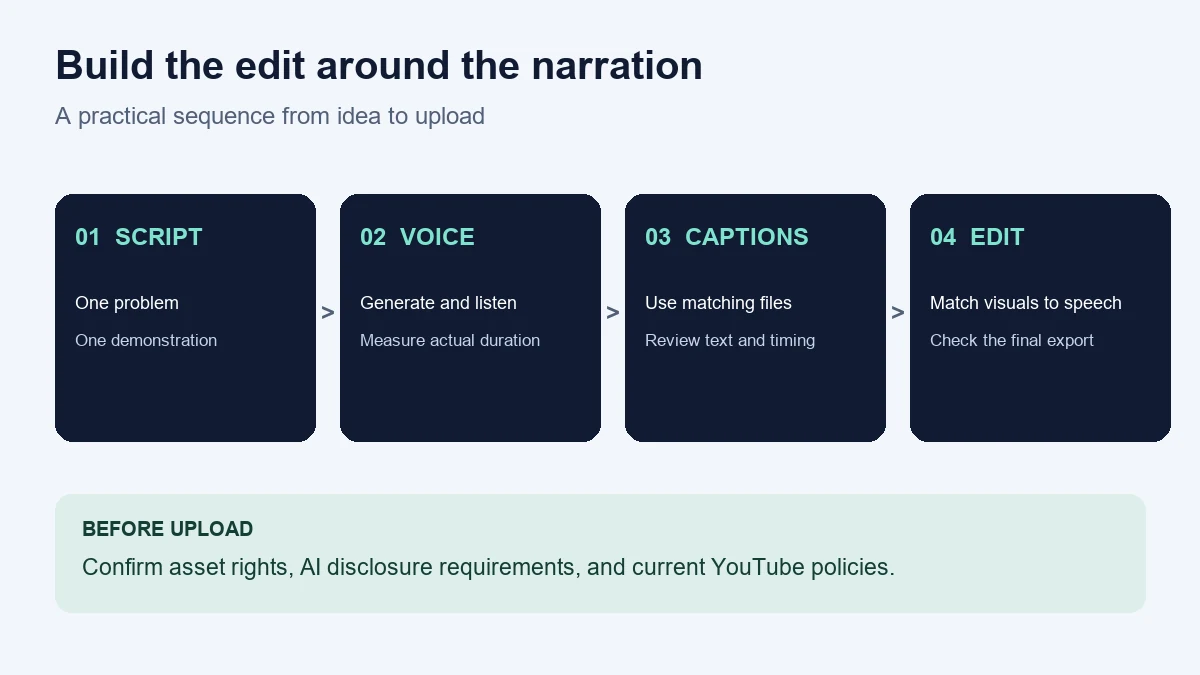
Import the downloaded audio into your editor and place it on the timeline first. Cut visuals around complete spoken thoughts. For a typical full-screen phone presentation, use a vertical 9:16 project; square videos can also qualify under YouTube's current Shorts rules.
Import SRT captions if your editor supports them. VTT is another timed-text format, but import support varies. A subtitle file contains text and timing; it does not automatically create a particular animated word-highlight style. Apply your editor's supported styling and check the result.
Review captions against the actual audio, especially names, numbers, and words respelled for pronunciation. Keep readable contrast and avoid placing essential text beneath platform controls. Preview the exported video on a phone as well as in the editing workspace.
Add background music only when it helps. Lower it until speech remains easy to understand, then check both headphones and a phone speaker. Listen for clipped peaks, abrupt starts, and a final word cut off by the video ending. Export once, watch the whole exported file, and confirm that captions still match.
Troubleshoot the most common problems
The narration sounds rushed. Cut repeated setup and unnecessary adjectives. Let a visible demonstration replace a sentence where possible. Shorter writing often solves the problem more cleanly than another speed increase.
A name sounds wrong. Test a short phrase with a pronunciation-friendly spelling. If it still fails, choose another suitable voice or record that line yourself. Correct the displayed caption afterward.
Captions drift after an edit. Import captions from the exact recording you used. Moving or trimming the audio requires corresponding subtitle changes; regenerating audio can change timing throughout the clip.
The voice disappears under music. Reduce the music and listen at a normal phone volume. Do not rely only on making the whole mix louder, which can introduce distortion.
The opening feels slow. Begin with the viewer's specific problem or the result you will demonstrate. Remove greetings and channel introductions when they delay the promised answer.
Check YouTube policies before uploading
An AI voice does not guarantee approval or monetization. YouTube's channel monetization policies require original, authentic content and address repetitive, mass-produced, and reused material. Add your own explanation, demonstrations, analysis, or storytelling. Replacing the narration on borrowed clips does not automatically satisfy these rules.
YouTube also has AI disclosure requirements for realistic generated or meaningfully altered content. Review its examples in relation to the complete video. Do not make a real person appear to say something they never said. Check the current upload settings and guidance rather than assuming every synthetic voice has the same disclosure treatment.
Music needs a separate rights check. YouTube states that Shorts longer than one minute with an active copyright claim are blocked globally. Consult the linked Shorts guidance before adding a track, and verify the conditions for the specific music you use.
Frequently asked questions
Can I create a free AI voiceover for YouTube Shorts without recording myself?
Yes. A text-to-speech tool can generate narration from your written script. You still need to review it, download the file, and combine it with visuals in a video editor.
Can I use Oropus for a monetized channel?
Review Oropus's terms and any applicable provider or voice restrictions for your project. Commercial permission for narration does not establish your rights to other video assets or guarantee YouTube monetization.
How many words fit in a 30-second voiceover?
At an assumed 150 words per minute, 75 words fill thirty seconds before pauses. Start shorter to leave room for visual transitions, then measure the actual generated recording.
Does Oropus generate the complete video?
This workflow uses Oropus for audio and caption files. Assemble your footage, screen recordings, titles, music, and narration in a separate video editor.
Do I need captions if the narration is clear?
Captions help viewers follow the video without sound and support access to spoken information. Review automatic text and timing rather than publishing the first export unchecked.
Will an AI voice help my Short go viral?
No voice tool can promise views. A useful idea, accurate information, clear delivery, and an edit that fulfills its opening promise are stronger foundations than a particular synthetic voice.
Start with one short script and one demonstrable result. Generate the narration, measure its duration, and finish the edit around it. A repeatable review process will help you catch problems before they reach your audience.